

Improving your WooCommerce product page SEO is the fastest way to get your products in front of people who are ready to buy. If your items are currently buried in Google search results, you can turn things around with a few straightforward tweaks.
In this guide, we will walk through setting up meta titles, polishing short descriptions, compressing photos, and using Rank Math or Yoast to get your product pages ranking where they belong.
WooCommerce product page SEO is the process of tweaking your individual product listings, including your titles, descriptions, images, and search metadata, so Google can understand and rank what you sell.
Google treats every product page on your store as a standalone landing page. Optimizing your homepage or category pages is a good start, but it will not help specific products show up in search results.
Giving each listing its own SEO focus brings qualified buyers directly to your add-to-cart button without relying on paid ads.
Before touching a single setting in WooCommerce, figure out the exact search terms buyers use to find your products. Skipping this step is the main reason product pages sit on page 3 of Google without getting clicks.
You don’t need expensive monthly software to find these terms. You just need to follow the trail real shoppers leave behind on Google, and it takes under ten minutes.
Write down the plain name of what you’re selling in two or three words, for example “canvas tote” or “beard oil.” Skip brand names or clever marketing slogans for now. Just write down what the physical item actually is.
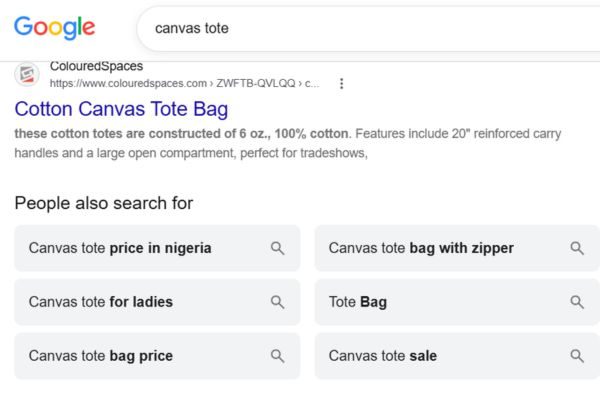
Open a private or incognito browser window so your past searches don’t affect the results. Type your basic product name into Google, press the spacebar, and pause. Google will drop down a list of the most popular related searches. Try adding details like materials, sizes, or single letters, like “canvas tote a” or “canvas tote b.” If Google suggests “canvas tote bag with zipper and pockets,” write that down.
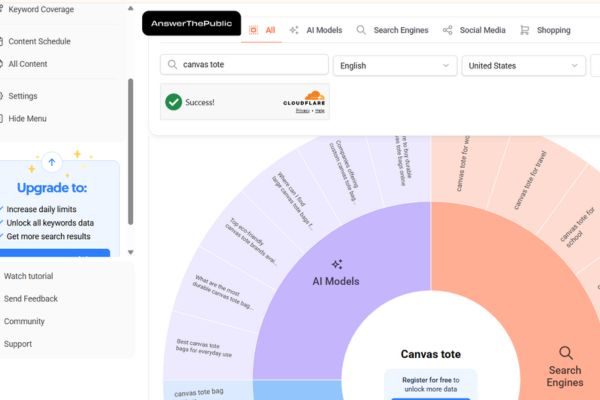
You can also plug your base phrase into free tools like Google’s Keyword Planner or AnswerThePublic to find a few extra low-competition phrases.
Search your main phrase on Google and open the top-ranking competitor stores, or head over to Amazon or Etsy. Read customer reviews for similar products and pay attention to the exact words buyers use.
Do they call it a “work tote,” a “beach bag,” or a “daily shopper”? Do they praise its “heavy-duty straps” or “waterproof lining”? Using the exact language your buyers use in real life makes your product descriptions feel relatable, and it naturally captures the kind of search traffic you want.
Search your main phrase on Google and scroll down the first page to spot two useful sections. “People Also Ask” shows the exact questions buyers ask before they spend money. “Related Searches,” near the bottom of the page, gives you extra search terms and alternate spellings.
Broad keywords like “laptop sleeve” are too competitive and rarely bring in shoppers who are ready to buy. Someone searching “15 inch leather laptop sleeve brown” knows exactly what they want and has their credit card ready.
Combine what you found in the steps above using this simple formula: [Material or Feature] + [Product Type] + [Size, Color, or Use Case].
Before moving to Step 2, write down one primary keyword (your main 3 to 5 word phrase, for example “15 inch leather laptop sleeve”) and two to three secondary keywords, like specific features, sizes, or materials shoppers search for (“zipper closure,” “padded interior”). You’ll use these when you set up your product titles in the next step.
Your product title has two jobs, and WooCommerce lets you handle them separately. The first is the product title your shoppers see on your site. The second is the SEO title tag, which is what actually shows up in Google’s search results, and it can be worded a little differently to match how people search.
If you’re using an SEO plugin like Yoast SEO or Rank Math, you’ll see a snippet preview box right below the WooCommerce product editor. That’s where you set your custom title tag. Keep it under 60 characters so Google doesn’t cut it off, and lead with your main keyword whenever it reads naturally.
By default, WooCommerce product links can end up long and cluttered, often packed with category names or extra slashes you don’t need. A messy URL doesn’t just look unprofessional, it also buries your main keyword under filler words.
Edit the slug so it’s short, clean, and built around your main product keyword. Something like /leather-laptop-sleeve-15-inch/ tells both Google and your customer exactly what the page is about before they even click.
WooCommerce gives you two separate description fields, the short and the long product descriptions. Most store owners only use one of them properly.
The product short description sits right next to your product image and price, above the fold, where shoppers see it first. Keep this part punchy. A sentence or two about what the product is and why someone needs it is enough to push them toward the add-to-cart button.
The main description box is where the real SEO work happens. This is where you add headings, longer details, and the specific phrases shoppers search for.
One of the biggest mistakes in e-commerce SEO is pasting the manufacturer’s description straight from the box it came in. If a dozen other stores are using that exact same text, Google has no reason to rank yours over theirs. Write your own version instead.
Cover the material, the sizing, how it’s used, and anything a customer would ask before buying. This is at the heart of optimizing WooCommerce for SEO, since original content separates your page from every other store selling the same item.
Here’s what that looks like in practice:
Manufacturer copy (avoid): “100% genuine leather sleeve. Fits most 15 inch laptops. Zipper closure. Available in multiple colors.”
Rewritten in your own words: “This 15 inch leather laptop sleeve is cut from full-grain leather that softens with use, so it only looks better over time. The zipper closure keeps your laptop secure on the move, and the padded interior protects the screen from scratches during daily commutes.”
The rewritten version says more, sounds like a real person wrote it, and naturally works in a few of the long-tail keywords you found in Step 1.
Alt text is the short description attached to each image on your page. According to Google’s own image SEO guidance, clear and accurate alt text helps search engines understand what’s in your photos, and it also helps visually impaired shoppers using screen readers. Write something specific, like “brown leather laptop sleeve with zipper closure,” instead of leaving it blank or stuffing it with keywords.
Large image files slow your product pages down, especially on mobile, and slow pages tend to rank worse and lose sales. You don’t have to manually shrink every photo yourself. Plugins like ShortPixel, Smush, or TinyPNG compress images automatically the moment you upload them to WordPress, so your page speed stays fast without any extra effort on your part.
Here’s some good news: WooCommerce already generates basic product structured data behind the scenes for every product you publish. You’re not starting from zero.
The SEO plugin you set up in Step 2, whether that’s Yoast or Rank Math, works alongside this native WooCommerce schema rather than replacing it. Your real job here is filling out the product details accurately, so Google has everything it needs to show star ratings and pricing directly in the search results. Getting these WooCommerce on-page SEO tips right at the data level is often the difference between a plain blue link and a rich, eye-catching result.
Here’s exactly what to fill in, and where to find it in the product editor:
Leave any of these blank, and Google may skip showing rich results for that product, even though the basic schema is technically there.
Internal links pass SEO authority across your store while keeping shoppers engaged. When you connect products across your catalog, Google crawls your site more easily and understands how your inventory connects.
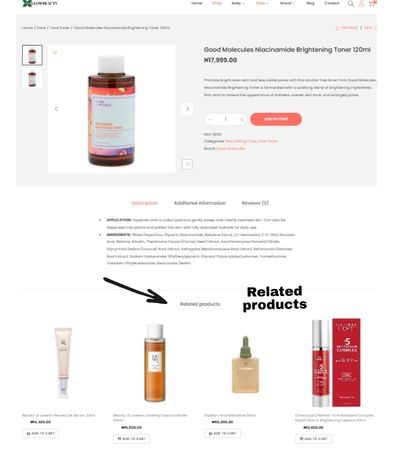
Just as importantly, guiding visitors to upgraded options, related products, or helpful accessories keeps them on your site longer and gives each page a better chance of making a sale.
The key is keeping every link pointing deeper into your own store rather than sending shoppers away.
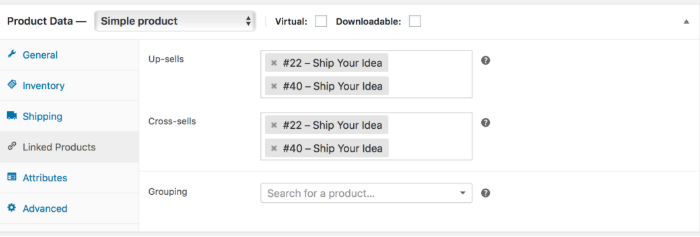
WooCommerce gives you three ways to link products together natively, and each one works differently:
On a blog post, linking out to a trustworthy source builds credibility. On a product page, it does the opposite. Every link that leads away from your site is a chance for a visitor to leave before they buy. Keep product pages focused on your own catalog, and save external links for your blog content instead.
Keep your meta description between 120 and 125 characters so your entire message fits cleanly on both mobile and desktop screens without getting cut off, with your main keyword placed near the beginning.
Mobile search results tend to truncate descriptions sooner than desktop does, so staying in this range keeps your full message intact instead of ending in an awkward ellipsis. Type it into the same plugin meta box from Step 2, right on the WooCommerce product edit screen.
Use the space to include a clear reason to click, like “Shop today” or “Get free shipping.” A short, specific line like that can noticeably raise your click-through rate once your page starts showing up in search results.
Before (too generic): “We sell high quality laptop sleeves for a great price. Check out our full collection today.”
After (124 characters): “Shop our 15 inch leather laptop sleeve with a padded interior and secure zipper closure. Free shipping on every order today.”
Notice the keyword sits right at the start, and the line ends with a reason to act now instead of just describing the product. If you want a closer look at writing these well, I put together a full walkthrough on writing meta descriptions that get clicks.
Shoppers scan product pages, they rarely read every word. Break specifications and features into bullet points so people can find what they need at a glance. Use your headings correctly too: one H1 for the product name, and H2s or H3s for sections like specifications, sizing, or care instructions. Clean structure makes your page easier for people to use and easier for Google to understand.
Customer reviews, star ratings, and a clearly stated return policy all do more than reassure a nervous shopper. They signal to search engines that real people are interacting with your store and trust it enough to buy. A product page with reviews and a visible, honest return policy tends to hold a visitor’s attention longer, and that kind of engagement is exactly what helps a page earn and keep its ranking.
Work through these ten steps on one product page first before rolling them out across your whole catalog. Once your changes are live, check Google Search Console to see which product keywords are starting to bring in clicks, and look for pages sitting just below page one. Those are your quickest wins to update next.
Pick your top three best-selling products today and run them through this checklist first. Small, consistent fixes like these are what turn a buried product page into one that actually brings in sales.
Share this post


This workbook provides a step-by-step framework for building and executing a winning strategy. It contains everything that you need to grow on social media and attract more customers online. You’ll also receive 4 exclusive bonuses worth $40 at no extra cost!
Driving growth through innovative digital marketing strategies that increase brand visibility, engagement, and conversions for lasting success.
© Copyright 2026 Ifeoma Anumudu – All Rights Reserved.