
You open your WordPress editor and see two spots that seem to ask for a title. Then an SEO tool warns you about your title tag vs H1 tag, and you have no idea if it’s a real problem.
Good news: it’s one of the most common mix-ups in on-page SEO, and it’s easy to fix. You don’t need to touch any code, and you can sort it out in one sitting.
In this guide, I’ll explain the difference between title tag and H1 in plain English. You’ll learn how to write both, whether they should match, and how to check yours in under ten minutes.
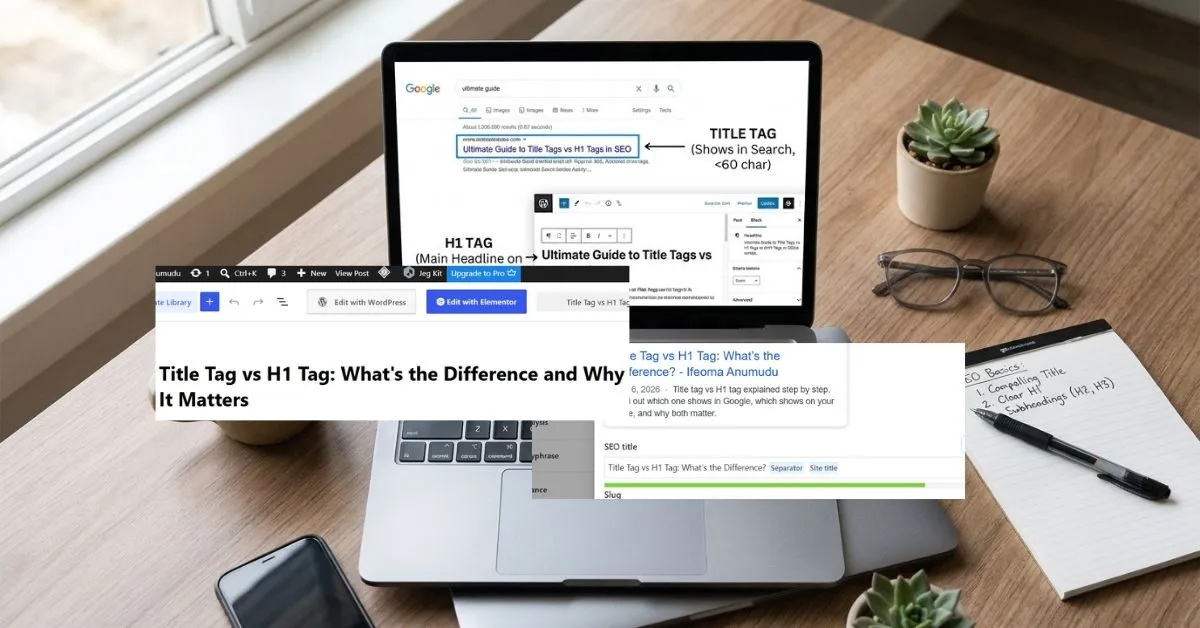
The title tag, which is also the SEO title, is the clickable headline people see in Google results and on their browser tab. The H1 is the main headline people see on the page itself.
Think of a shop. The title tag is the sign on the street that gets people to walk in. The H1, which is the post or page title, is the sign inside that tells them they’re in the right place.
They work as a team. That’s the heart of title tag vs H1 tag: one earns the click, and the other keeps the visitor from leaving.
A title tag is a line of code that names your page. It sits in the head of the page, so visitors don’t see it on the page itself. They see it in other places. It is also called the SEO title.
You’ll spot your title tag in a few spots:
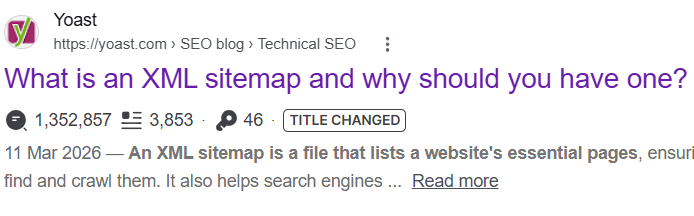
Google doesn’t just copy your title tag and paste it into the results. It builds the title link from a few sources. According to Google’s own guidance, those include the title element, the headings on your page, and other large, prominent text.
There’s no set length limit for a title tag. But Google trims long titles to fit the width of the screen.
Google can also change your title. It says to avoid stuffing keywords, repeating the same title across pages, or using vague titles that don’t describe the page. Titles with those problems are more likely to get swapped out.
Here’s what Google’s John Mueller suggests if your title gets rewritten. Test it page by page. Change the title tag, submit the page in Search Console, and see how Google responds.
So even a good title tag can get rewritten. You can’t fully control it. But you can make it easy for Google to keep yours.
The H1 is the main heading on your page. It’s the big headline at the top that tells visitors what the page is about. In WordPress, it’s usually your post title, and it is also called the post or page title.
You see the H1 on the page itself, usually at the very top in the largest text. It lives in the body of the page, not the head. People rarely see it in search results, though Google can use it when it builds the title link.
Your H1 does a few jobs at once:
Here’s the difference between title tag and H1 at a glance:
| Title tag | H1 tag | |
|---|---|---|
| Where it lives in the code | The head of the page | The body of the page |
| Where people see it | Google results, browser tabs, bookmarks | The top of the page |
| Who sees it | People who haven’t clicked yet | People already on your page |
| Main job | Earn the click | Confirm they’re in the right place |
| Best length | About 60 characters or less | Short enough to read at a glance |
| How many per page | One | One is best |
| Where you edit it in WordPress | The SEO title field in your SEO plugin | The post or page title field |
Here’s an easy way to remember it. The title tag talks to people who are still deciding. The H1 talks to people who already decided and want to know they made the right call.
Your title tag also has a partner in search results: the meta description. Together they make up your search snippet. If you want help with that part, I wrote a full guide on how to write a meta description that gets clicks.
Short answer: they don’t have to match, but they should say the same thing.
Yoast, the team behind the popular SEO plugin, says the two don’t need to be the same. By default, Yoast builds your SEO title from your post title.
In most WordPress setups, the title tag starts out based on your post title, so the two already match closely. That works fine. If your post title is clear, under 60 characters, and has your main keyword, you don’t need to change anything.
Matching also helps visitors feel they landed on the right page. The headline they clicked is the headline they see.
Sometimes the two have different jobs, and it helps to split them:
Yoast gives a good example. On a product page, you may want the price to show in search results but not in the H1. That’s a good reason to give the product page a different SEO title.
These are sample pages, not real ones. They show how the two tags can work together.
A blog post
The title tag adds a number and a year, which can help people decide to click. The H1 reads more naturally on the page.
A WooCommerce product page
The product name stays clean on the page. The title tag adds the benefit that gets the click.
A service page
The title tag adds the brand name at the end, so people know who offers the service.
Aim for one.
Google can handle more than one. In 2019, John Mueller said, “Our systems don’t have a problem when it comes to multiple H1 headings on a page.” He called it a fairly common pattern on the web.
Mueller has also said a site will rank “perfectly fine with no H1 tags or with five H1 tags.”
So why bother with just one? Because one clear H1 gives readers and screen readers a clean outline. It’s also simpler to manage.
If your page has more than one H1, it’s usually one of these:
Open the heading’s settings and change the tag from H1 to H2 or to a regular paragraph. Keep your logo as a linked image, not a heading.
Here are five habits that make a title tag look good.
Google trims titles to fit the screen, so long titles get cut off with dots. About 60 characters is a safe target.
You may see SEO tools measure titles in pixels instead, usually around 600. That’s a handy rule of thumb from the SEO world. It’s not a rule from Google.
People scan results quickly. Put the phrase they searched for first.
For example, “Title Tag vs H1 Tag: What’s the Difference?” starts with the exact topic.
Every page needs its own title. Google’s guidance warns against repeated titles. Its example is a store that titles every page “Cheap products for sale,” which makes it impossible to tell two pages apart.
Vague titles are a problem too. Google says to avoid titles like “Home” for your home page. Use your business name and what you do instead.
Numbers, brackets, and a clear benefit can help people choose your result. “7 Tips” or “(2026)” gives them a reason to click.
Keep it honest, though. If your title promises seven tips, give them seven tips. Clickbait costs you trust.
Don’t cram your title with the same words. “Cheap Shoes, Buy Shoes, Best Shoes Online” is a good example of what to avoid.
Google says this kind of keyword stuffing can make your results look spammy to Google and to people.
Your H1 has a different job than your title tag, so the rules are a little different. Here are the H1 tag SEO best practices worth following on every page.
Put your main keyword in the H1 if it fits. If it sounds awkward, rewrite the heading until it reads like something a person would say.
Your H1 should promise what the page delivers. If someone searched for how to do something, your H1 should tell them they’ll find a how-to. If they wanted a quick answer, don’t bury it.
Short headings work best. If your H1 wraps onto four lines on a phone, trim it.
Go from H1 to H2 to H3 in order. Don’t pick a heading level because of how big it looks. If you want bigger or smaller text, change the font size in your theme settings instead.
Your H1 should describe this page, not your whole business. A logo or a tagline in the H1 spot tells visitors and Google nothing about the page they’re on.
Here’s where to find each one in WordPress.
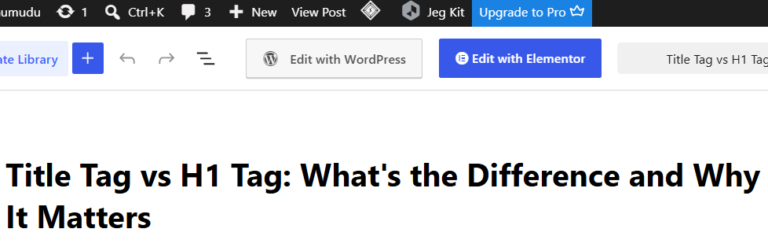
On most themes, the box at the top of the editor where you type your post title becomes your H1. You can confirm by looking at the live page.
If you use a page builder, open the heading widget and check its HTML tag setting.
Your title tag lives in your SEO plugin. Here’s how to find it:
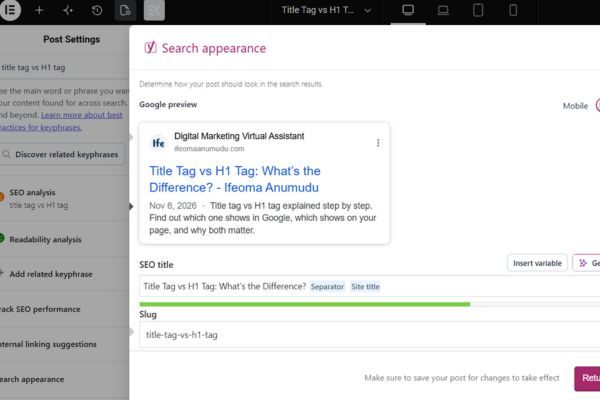
By default, Yoast builds the SEO title from your post title, a separator, and your site name. That works well for many posts. Change it only when you need different wording.
On a product page, the product name is your H1. Use the SEO title for the benefit or the price, like in the laptop sleeve example above.
I cover this step in my guide on WooCommerce product page SEO.
You don’t need a paid tool to check this. Start with your browser.
<title to find your title tag.<h1 and count the results. If you find more than one, check why.Search for your page’s topic and find your listing. You can also search site:yourdomain.com plus a few words from the page title.
Compare what Google shows with what you wrote. If they’re different, Google rewrote your title.
Then open Google Search Console and look at the Performance report. It shows clicks, impressions, and click-through rate for each page. Pages with lots of impressions but few clicks are good ones to rework first.
A free crawler like Screaming Frog lists the title tag and H1 for every page it crawls. The free version has a 500 URL crawl limit, which should cover many small business websites.
These are the mistakes I’d check for first. Each one comes with a quick fix.
These are anwers to some of the questions you may have.
No. They’re two separate pieces of code with different jobs. The title tag shows in search results and browser tabs. The H1 shows on the page. They can say the same thing, and in many WordPress setups they start out that way, but they don’t have to.
Both matter, in different ways. The title tag shapes how you look in search results, so it affects clicks. The H1 helps visitors and search engines understand the page. Google doesn’t publish how much weight each one gets, so treat both as worth getting right.
Yes, Google can handle it. John Mueller has said Google’s systems don’t have a problem with multiple H1s. Still, one clear H1 is easier for readers and screen readers, so aim for one.
Yes. Google builds title links from several sources and may show a different title if yours is stuffed, repeated, or unclear. Write a clear, unique title that matches the page, then check how it shows up in search.
Yes, both should point to the same main topic. They don’t need identical wording. Use your main keyword naturally in each one, and let the title tag add extras like a year or a brand name.
The title tag vs H1 tag mix-up is small, but fixing it helps every page on your site. Pick your five most important pages and check both tags today.
Want the full checklist for the rest of the page? Here’s my guide on how to optimize a blog post for SEO step by step.
If you’d rather have someone check your site for you, book a free consultation and let’s get your pages working harder.
Share this post


This workbook provides a step-by-step framework for building and executing a winning strategy. It contains everything that you need to grow on social media and attract more customers online. You’ll also receive 4 exclusive bonuses worth $40 at no extra cost!
Driving growth through innovative digital marketing strategies that increase brand visibility, engagement, and conversions for lasting success.
© Copyright 2026 Ifeoma Anumudu – All Rights Reserved.